

ForgeNEX CRM · In testing
A voice receptionist for your website
Set up a voice receptionist to answer visitors and help them get in touch or book.
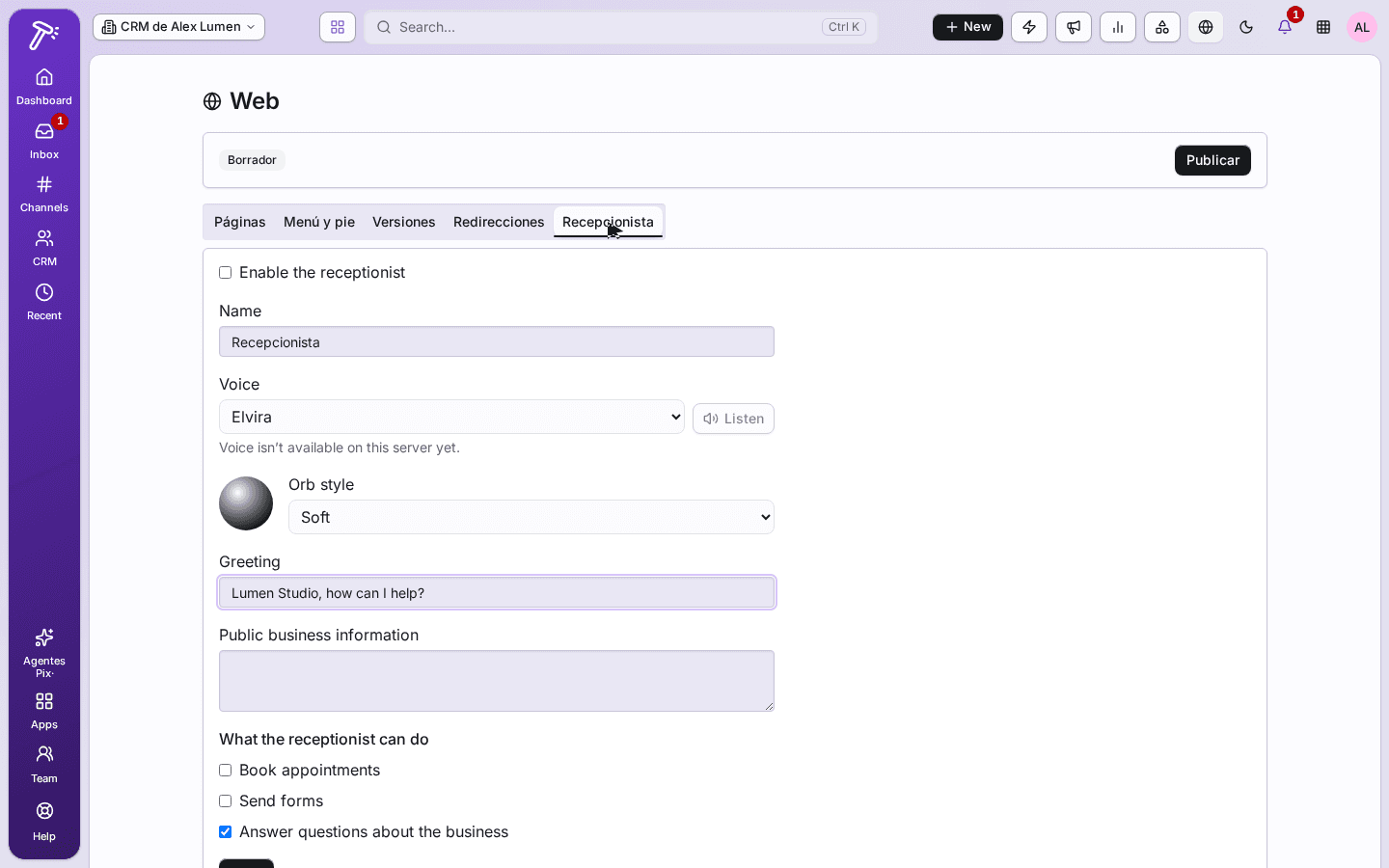
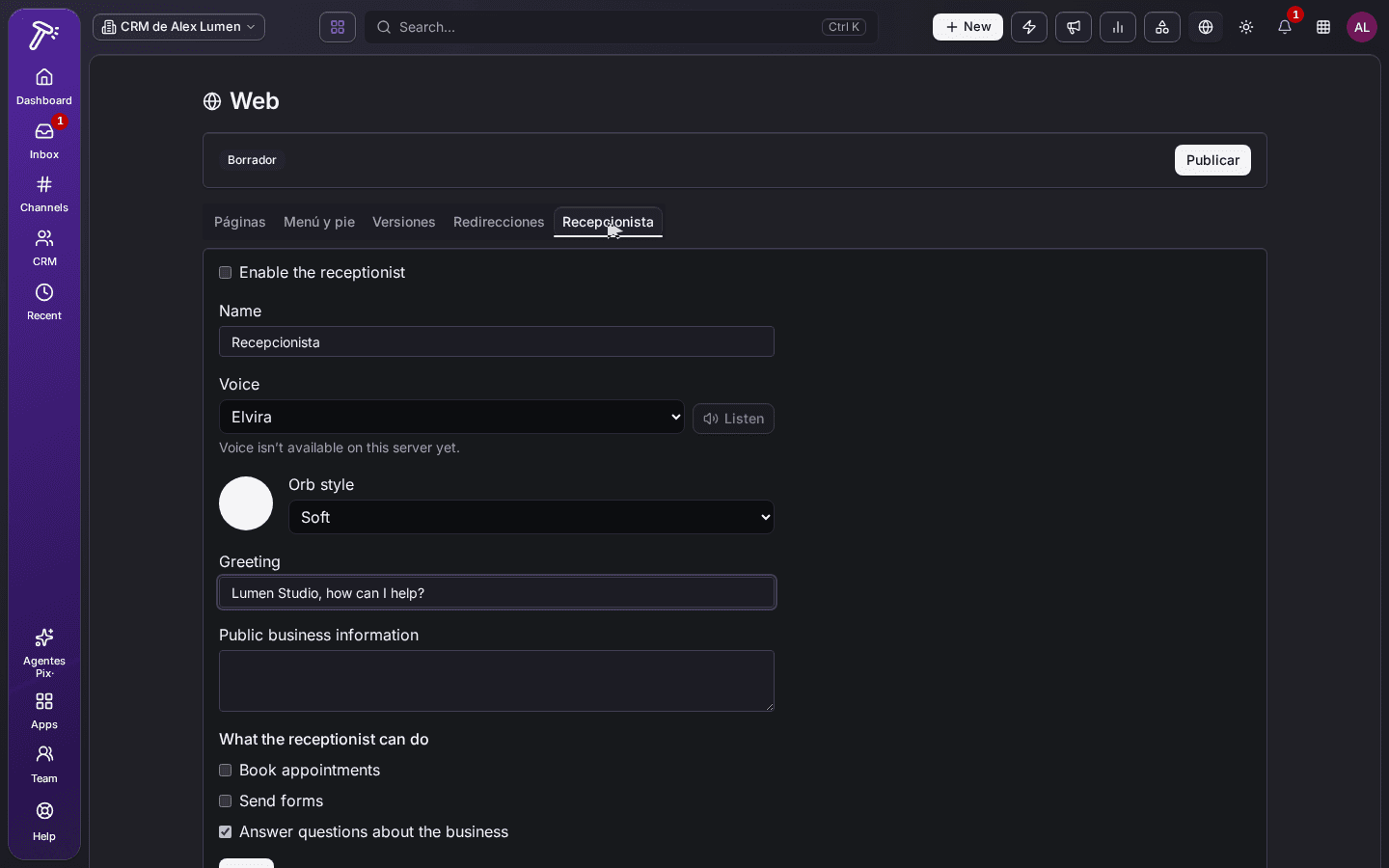
Set up your receptionist
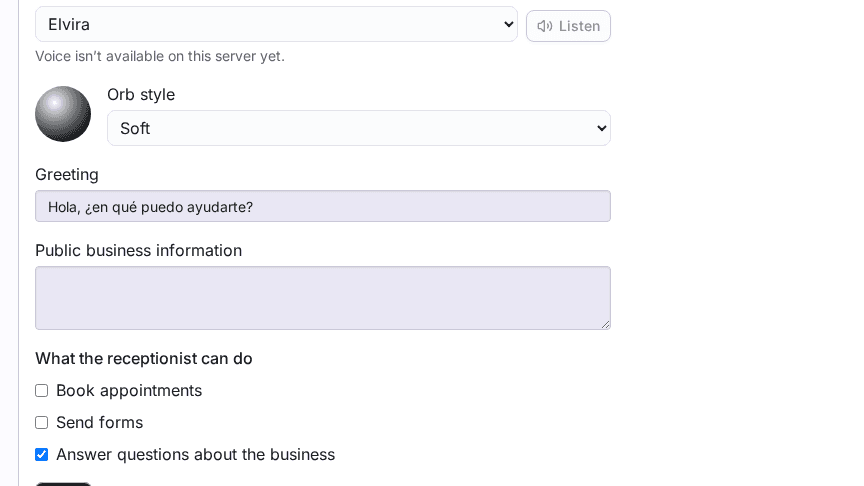
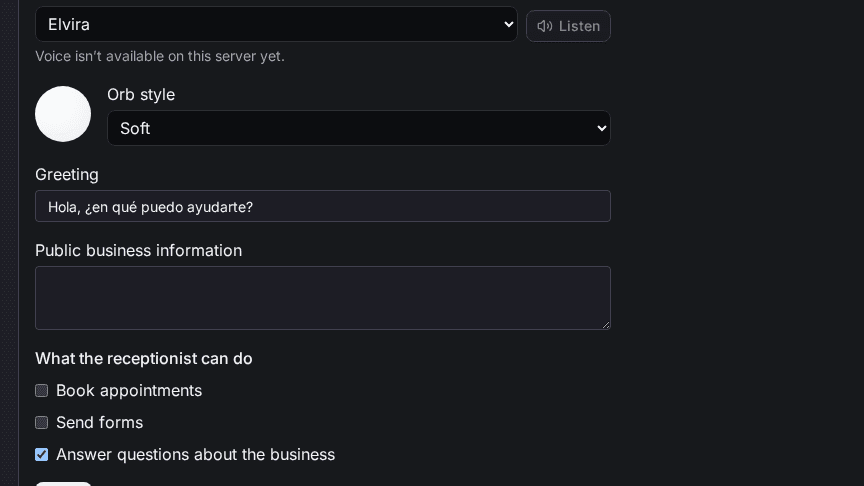
Choose how your website receptionist greets visitors. Its settings define how it introduces itself and which public information it can share.
- Choose a name and greeting.
- Select a voice and an orb style.
- Enter the public information it can share about your business.
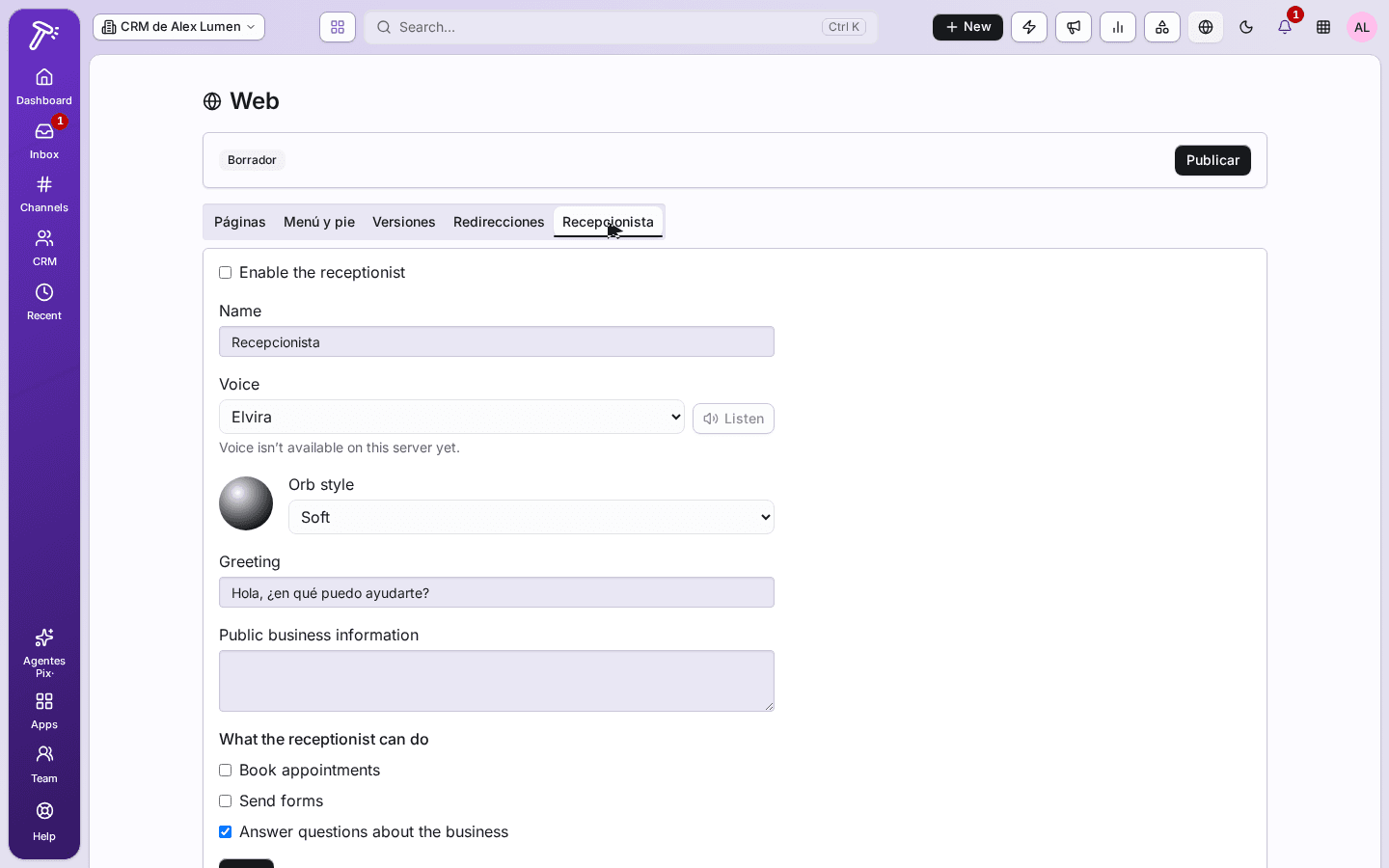
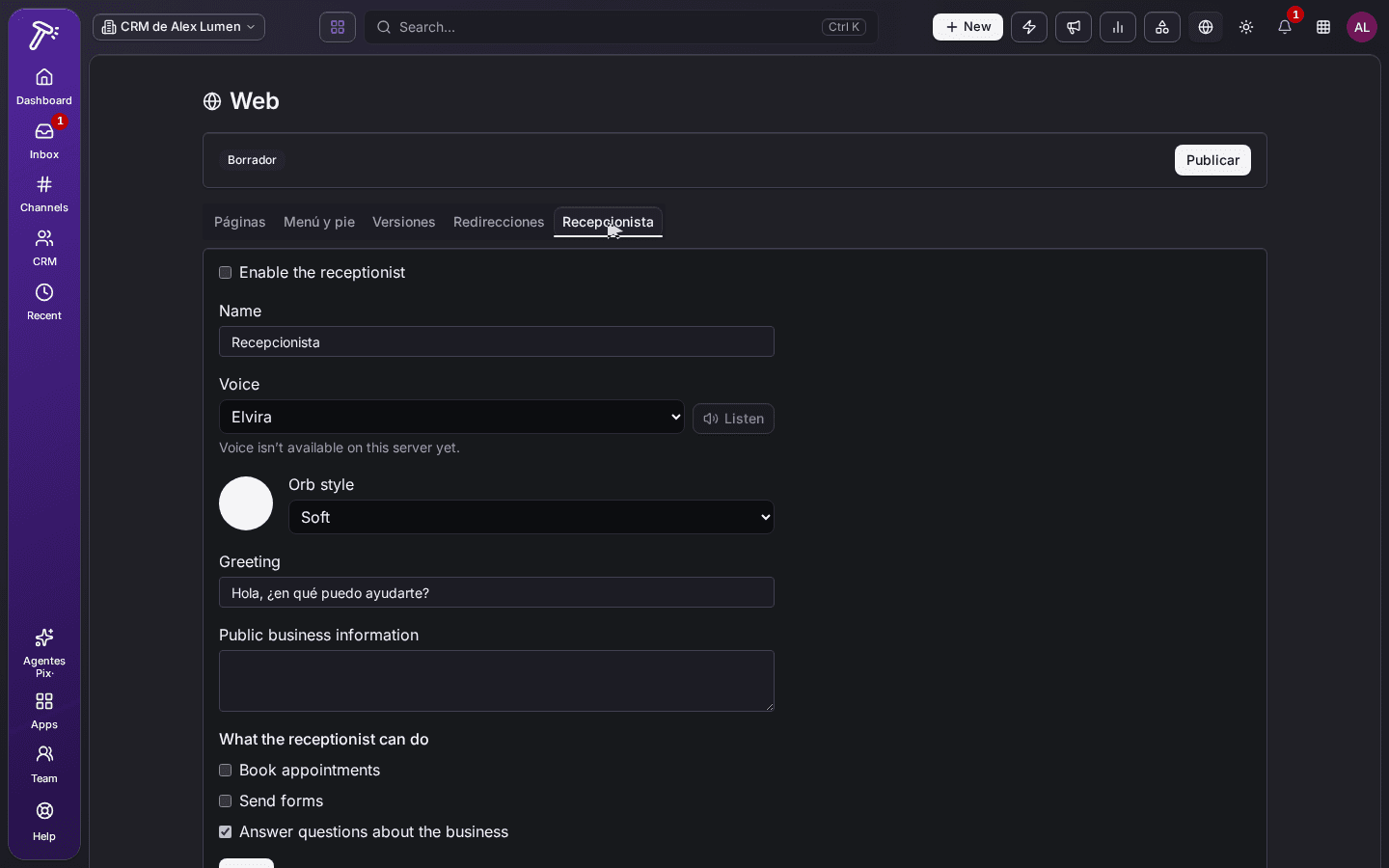
Choose what it can do
Choose which actions to offer visitors. Each permission is managed in the receptionist settings.
- Enable information, forms or appointments in Settings.
- Control which resources visitors can access from the website.
- Switch business answers, forms and bookings on separately.
Track voice minutes
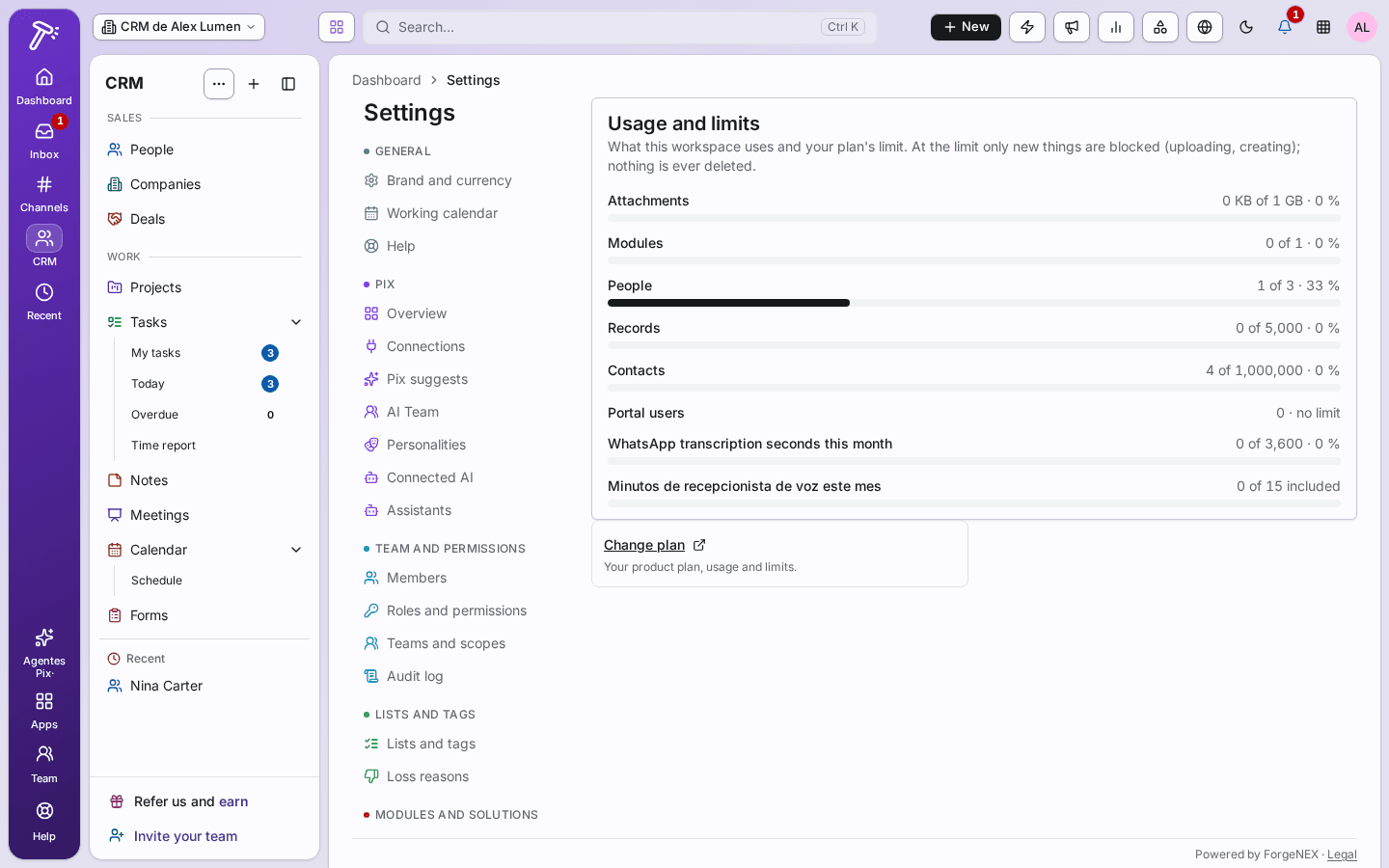
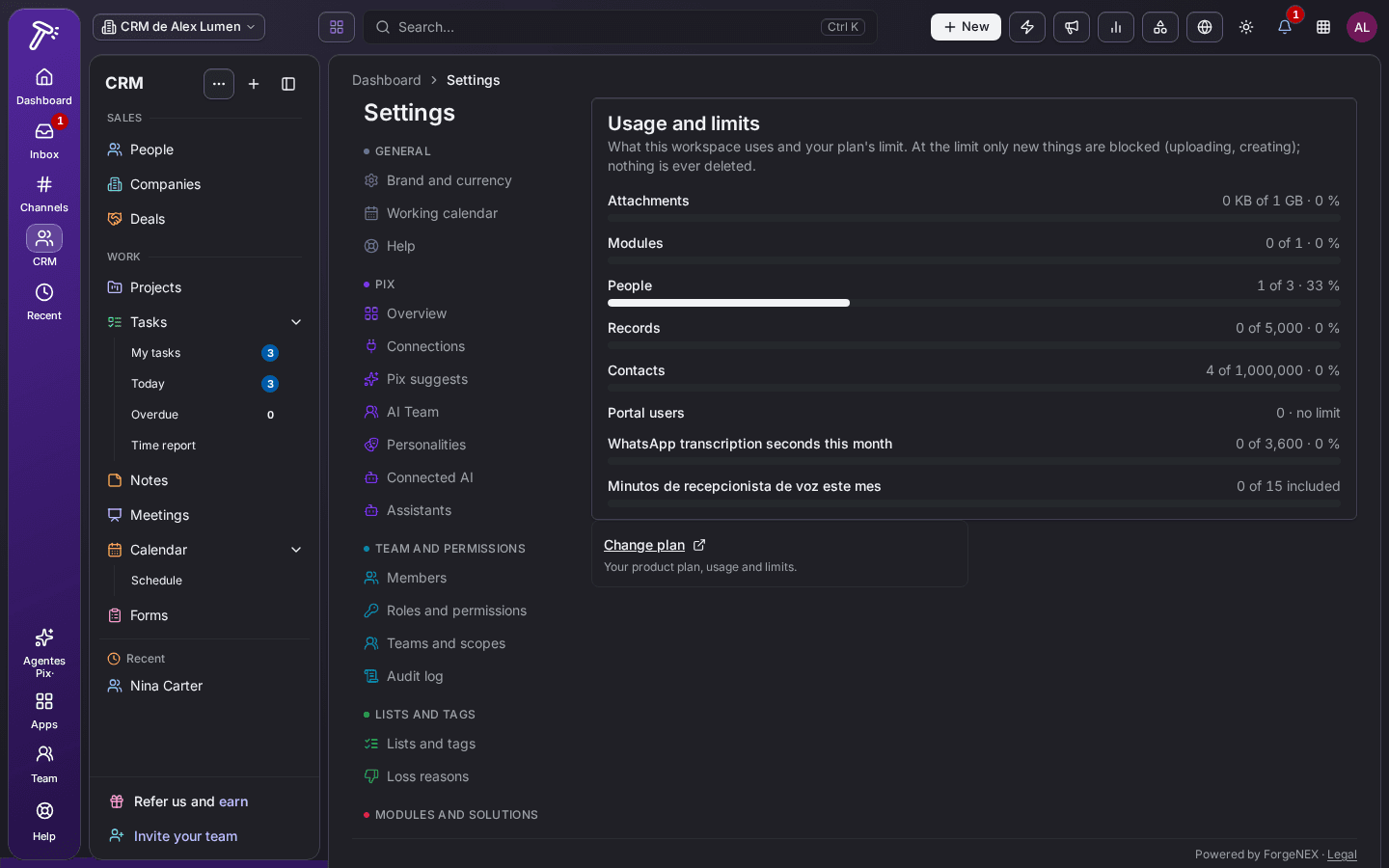
Check your workspace’s voice usage in Usage and limits. See how much of the allowance remains before you reach the limit.
- Check available minutes in Usage and limits.
- If the allowance runs out, visitors can continue using a form or booking.
- Review voice usage alongside your other workspace limits.
Connects with your CRM
- Websites · Enable the receptionist in settings and add its block to the site.
- Forms · Let the receptionist offer enabled forms.
- Bookings · Enable appointments so the receptionist can offer bookings.
Frequently asked questions
How is it enabled on a website?
Add it as a Receptionist block and enable it in Websites settings. Voice depends on availability and the plan.
Can I decide whether it offers appointments?
Yes. Appointment booking has a separate permission in settings.
Can I customise the greeting?
Yes. Edit the greeting and name in the receptionist settings.
Where can I see the allowance?
See your workspace’s voice minutes in Usage and limits.
Where can I check the plans?
Visit Pricing to check current CRM plans and their allowances.