

Property management CRM for owners’ associations, repairs and fees
Set up properties, repair issues, owners’ meetings and fee receipts in the ForgeNEX property management solution.
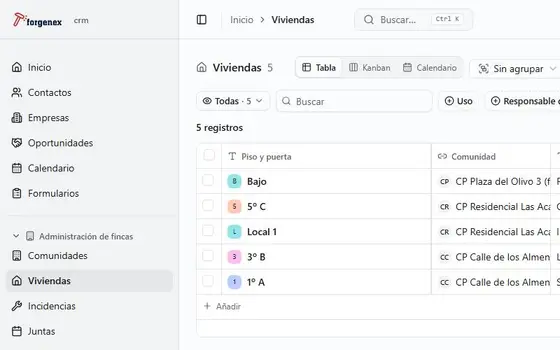
A broken communal door, a meeting notice and a returned fee payment require different actions. They all need to lead back to the right owners’ association. The Property Management solution in ForgeNEX CRM brings together associations, units, issues, meetings and receipts. Start out with a single association and one payment period. That gives the office a chance to settle its workflow before loading the entire portfolio.
1. Create the association and add its properties
In the associations module, create a record with the name the office will search for, the tax identifier, address and chairperson's contact details. If you plan to print the association record, check who needs a copy and whether it should show the association's bank details. You can enter the expected number of units and compare it with the count of linked unit records. That gives you a way to find associations whose unit list is incomplete.
In the properties module, create a record for each unit you need to manage and link it to the association. Enter its floor and door or unit reference, owner, use, ownership share and monthly fee where applicable. The use field distinguishes residential units, commercial premises, parking spaces and storage units. The annual fee shown on a unit record is twelve times its monthly fee. For extraordinary charges, check the basis for the allocation against the association's decisions before entering amounts.
Agree a consistent way to identify units. If a floor plan says “ground floor A” and a caller says “unit A”, choose a reference that the office can reliably find. Then check that units with the same reference under two associations have distinct records and link to the correct parent. This matters most when staff take calls for several buildings on the same day.
2. Sort issues by priority and trade
Create an issue for the report. Link it to the association and select the affected unit if the problem relates to a particular property. Record the report date, priority, trade and a description someone can act on. For a door that will not close, say which entrance it affects and when the fault occurred. Use the trade to classify the job and the supplier field to identify the company handling it.
Keep a new report open when it arrives. Move it to the quote stage when you are waiting for a price, and to in progress after work starts. Use the board grouped by trade to bring together issues that a contractor might handle in one visit, and the status board to identify reports that still need a decision. The supplied automation can alert the team about new urgent issues and record a resolution date when an issue is resolved. Try both behaviours with demo records.
The printable issue report includes details a contractor will need. Review it before sharing it and record how the issue was resolved once you have checked the result. Agree what closed means to your team. For example, reserve that state for cases where you have checked the work and reported back to the person who raised the issue.
3. Prepare meeting notices and record decisions
Create a meeting, select the association and record the date, time, location, meeting type and agenda. The meeting calendar gives you a view of upcoming meetings. Open the print template for the owners’ meeting notice and review the text, including the footer, before using it. An agenda should make it easy for recipients to see which decisions will be discussed and where to attend.
After the meeting, enter the decisions in the agreements field and update the meeting status to held. Move it to minutes sent after sending the minutes through the association's usual channel. When entering each decision, record the agreed action, who will follow it up and the deadline where one was agreed. If owners ask you to get another repair quote, create or update the issue under the same association so that action can be followed from the repair queue.
4. Record fee receipts and reconcile payments
In the receipts module, select the association and property and check the owner pulled from the property record. Choose an ordinary fee or special assessment, and enter the period, issue date and due date. Add the items to the lines table and check the calculated total. The receipt has a number and a printable template. Review units and amounts for the first period before repeating the process for the rest of the portfolio.
Use pending, paid and returned statuses according to the payments you have reconciled. A supplied automation creates a follow-up task when a receipt is marked as returned. The outstanding amount on the dashboard includes receipts marked pending or returned. It relies on the states recorded in the CRM, so put the reconciliation and status review in the same routine. That helps prevent an amount that already cleared the bank account from appearing in a follow-up queue.
A weekly review of the pilot association
Open the property management dashboard and review open and urgent issues, the outstanding balance and the amount issued by month. The amount issued helps you check coverage of the billing period. Outstanding amounts tell you where to investigate payments or follow up with owners. When either figure surprises you, look at the underlying rows for the period and the relevant statuses before changing an amount.
Use two associations with similar unit references to test your naming and linking conventions. Give a colleague the name of an association and ask them to find an issue report, a meeting notice and an unpaid receipt without help from the person who created them. If they can identify the next action from each record, you have a workable process to extend to the rest of your portfolio.