

How to configure roles and permissions in ForgeNEX CRM
Decide who can view, edit and delete CRM records, then verify access using the account your team will use.
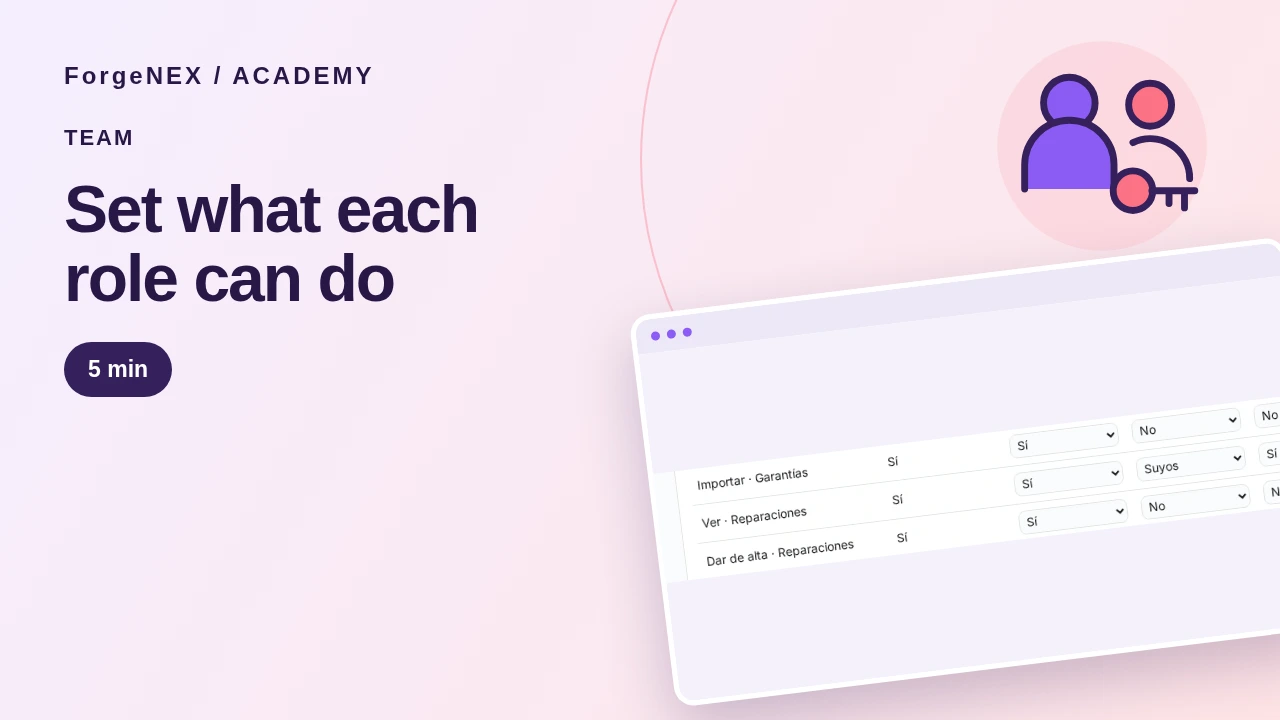
One member of the team needs to see the jobs assigned to them and update their status. Someone else needs to find any job to cover colleagues who are away. A third person checks what data you keep and decides who can delete a record. Those responsibilities look similar when everyone opens the same module, but they change what each account needs to do with a particular record. In ForgeNEX CRM you can adjust access by role, module and action.
Describe the division of work using examples
Start with a module you know. At a workshop, use Repairs and describe a typical morning. Reception creates a repair after talking to whoever brings in the vehicle. The mechanic needs to open it and record the work they complete. The coordinator looks across the team’s repairs when someone is running behind. Deleting a repair involves checking whether the record already has documents or activity you need to keep.
Write down who reads, who changes and who deletes. A person who corrects a job description has a separate responsibility from the person who decides whether to delete the record. You also cannot infer that two people need to see the same repair records simply because they both work on repairs. Record one example that each role should be able to open and one that should remain out of reach. Use those two records when you test access.
If your team works with related modules, such as customers and repairs, decide what information each person needs in the related module as well. A mechanic might need to identify the vehicle and understand the request. Additional contact details might be useful only to reception. Write down both scenarios before changing the matrix. Then you can test what happens when a person enters a module directly from the menu and when they follow a link from a repair.
Configure a role and check its scope
In Members, edit your test account and select the appropriate Role. The Academy example uses Member. Before changing a role that already has users, find out who has it. A change aimed at one workshop could otherwise affect someone who uses it for different work. Use sample records and an account you can review without disrupting anyone for your first test.
In Roles, open Permissions. Find the rows for the Repairs module under the column for the role you want to configure. For staff who should see the repairs assigned to them, select the Own scope for View. Choose that scope for Edit too if they should update those records. For Delete, select No if another role handles deletions. Repeat the decision for each relevant module based on how the role uses it. The right scope for Repairs can differ from the right scope for other modules.
Record assignment needs to be part of the everyday handover. When reception passes a repair to a mechanic, check that the repair is assigned to the person who will actually work on it. If they cannot find that job, start with the assignment, their role and the action they were trying to take. Opening general access to solve a bad assignment would also widen access for other people who share that role.
Test allowed and restricted actions
Set up two test records, one assigned to your test account and one assigned to another person. Sign in to the test account in a separate browser profile so that you can distinguish it from the administrator’s session. Open Repairs, search for both titles and open the permitted record. Change a sample detail, save, and return to the record to check that the edit persisted. Check that the account cannot delete the record and look for the action wherever a person might normally expect to find it.
Test the record assigned to someone else as well. If a task involves looking up related records, follow that route and check whether the list or record shows the information the role needs. For any unexpected result, write down the account, role, module, action and test record. That gives the administrator enough context to review a specific rule and avoids making broad changes based on a vague description.
If you configure restrictions on fields, add a test for those fields. The Academy covers protected fields and also has a lesson on access by zones. Work through those rules once you are clear about basic access to the module. Permission to view a record and permission to see a particular piece of information in it describe two separate decisions. Check the normal views and navigation paths with the test account as well as the record’s direct view.
Update permissions when the work changes
When someone covers a colleague or starts coordinating the team, decide whether the responsibility needs a different role or whether it is enough to assign specific records to them. Repeat the original two checks after making the change. A short review also helps when you install a solution with new modules. Work out who should see each module, who can update it and who should have permission to delete records.
Keep a short list defining the purpose of each role and who approves changes to it. For a workshop’s Member role, you could write “views and updates assigned repairs, with deletion disabled”. Include how to verify that instruction using two different repair records. The next person who adds a team member will then know what behaviour to expect before handing over the account. Make what the team can actually do the acceptance criterion for the review.
When someone leaves the team, review their outstanding work as well. Assign each open repair to the person who will continue it and check that they can open and edit it. You can then remove the previous account’s access and keep track of jobs in progress.