

How to move from spreadsheets to a CRM in one week
A five-day plan to move one workflow into ForgeNEX CRM, rehearse the import, assign access and switch systems with your team.
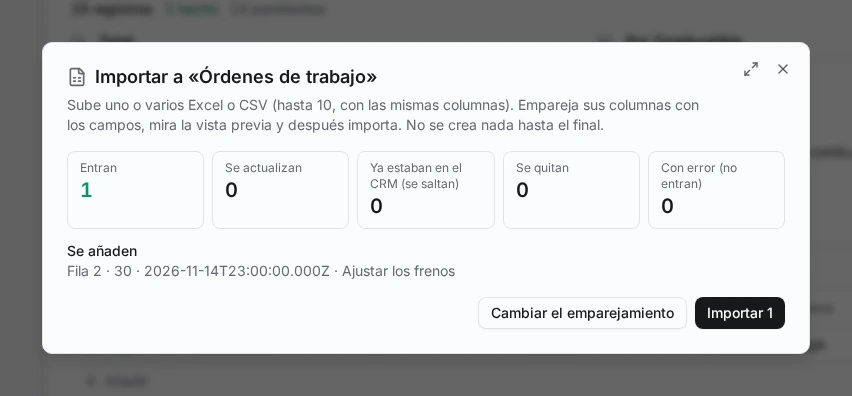
A week can be enough for a small team to start using a CRM for a clearly defined workflow. The aim of this plan is to move what someone needs to handle one case from start to finish. Suppose you track sales enquiries in a shared spreadsheet and a colleague keeps customer details in another file. By Friday you should be able to open an enquiry in the CRM, identify its customer and leave the next action ready for someone else to pick up. Older records and other workflows can have schedules of their own.
Monday. Choose the work you are moving
Pick a recurring workflow and name someone who can resolve questions about the data. Spend half an hour tracing a recent enquiry together. Note where it arrived, when someone added a row, who picked up the work and where they recorded the decision. Look at a second enquiry and pay attention to columns that everyone leaves blank and information entered in comments because there is no clear place for it.
Agree which cases will move into the CRM this week. You might start with customers linked to open deals and active opportunities. Save a dated copy of the sheets with access limited to the people who need them. Keep the references that let you trace an old row if you need to investigate an error. If a column contains personal information that the team does not need for the workflow, leave it out of the working file. The goal for Monday is for two people to point to the same rows as candidates for the move.
Tuesday. Set up the workflow in the CRM
Use People and Companies for the appropriate customer details and Opportunities for specific sales still in progress. A company can appear in several enquiries. Split its company record from those individual deals in the working files. If the workflow depends on information that has no field, decide how the team will use that information and who will maintain it. Changes to the configuration can wait where the information is unnecessary for the first workflow.
Create a sample case by hand. Ask someone to open it, find the customer and explain what still needs to happen. If they had to ask the person who maintained the spreadsheet what a column meant, clarify that before importing. Review roles at this point as well. Decide who should see the sample case and who can change it, then check with a team account. This keeps you from loading the data and discovering on Friday that only the administrator can work with it.
Wednesday. Rehearse the import with a few rows
Put together a sample with at least one straightforward record and one awkward case. You might include a company entered under two spellings and an opportunity with an incomplete date. Keep the original file while you resolve the cases in a working copy. Decide how to recognise an existing company and what to do when you cannot tell whether a particular row belongs to it. A name match needs review where several companies have similar names.
In the destination module, choose Import and select the XLSX or CSV file. Map the columns to CRM fields and open the preview. Review the rows that can be imported and those with errors. Fix the data or column mapping before confirming. Start with the reference records that other rows need to use. Check how relationships will be linked before loading the remaining data. If a group needs human review, set those rows aside and name the person who will resolve them.
Confirm the sample import once the preview matches your expectations. Open individual records to review values, dates and owners. Keep counts of the rows you prepared, loaded and set aside. Decide how you will handle the sample before the main load so you avoid importing it twice. The linked import guide covers preparing and reviewing a file in more detail.
Thursday. Load the main batch and rehearse a handover
Import by module and reconcile the results with your counts. If the figures differ, identify the affected rows before retrying the batch. Work through the process with the person handling enquiries. Open an imported opportunity, verify the customer, edit a sample detail on a test record and leave the next action. Ask the person picking it up to find and explain it. Test another company that has two deals to confirm that each deal can be tracked separately.
Agree a time after which the team stops editing the sheet. If someone changes an appointment or receives a reply while the batch is loading, record that change separately and transfer it to the CRM once you have checked the record. A short list of changes during the switchover keeps people from having to guess which file contains the latest state of an opportunity.
Friday. Work in the CRM and assign outstanding cases
From the agreed time, use the CRM for new enquiries and keep the spreadsheet as a read-only reference. Make sure the team knows where to record problems and who will review them. During the day, check that incoming enquiries have a record and that the opportunities you reviewed still have a next action. Use a handover as your acceptance check: two people should be able to deal with the same case without editing the old sheet.
End the week with a list of exceptions, including an owner and a date for each. A row you set aside should only re-enter the next import once someone has checked it. Schedule the older records, reports or automations after the daily workflow is running. That gives you evidence about which information the team actually needs to consult before you plan the next move.