

How to manage renovation estimates and progress certificates
Track itemised estimates, site logs, variations, progress certificates and payments with the ForgeNEX renovations solution.
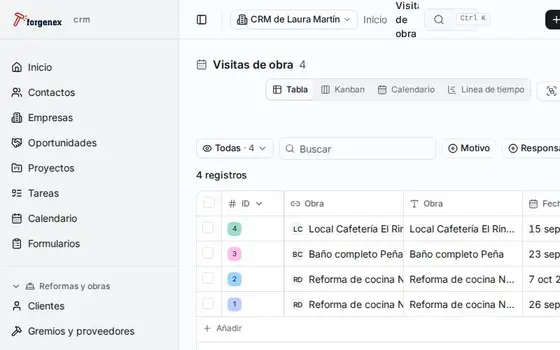
On a renovation, the estimate explains the agreed scope, the site log describes the work and the progress certificate presents the work for the period for approval. When those documents live separately, it takes time to find out whether a figure is part of the original agreement, a variation or work that was already certified. The Renovations and Construction solution in ForgeNEX CRM links that information to the job. Start with a small project where you can trace each amount back to the work it represents.
1. Open a project record with a recognisable scope
In the projects module, create a record with the job name, customer, location, type, expected dates, supervisor and the notes your team needs. Use a name that distinguishes two jobs for the same customer. Agree who updates the projected finish date when delivery of materials or a site visit changes the schedule.
From the project record, you can see related records and open actions to create site logs, material orders, progress certificates, variations and completion documents. When creating a record in a separate module, check that it links to the correct project. That gives office staff a way to go from the project to a particular day's work and keeps two contracts for the same customer from getting mixed together.
2. Write line items you can check against the work
In the estimates module, select the job and customer. Add the date, expiry and terms. Enter the line items and check the calculated total. Give each item a description the customer can recognise and the supervisor can check. For flooring, for instance, include the room and finish. Keep distinct work in separate lines if you will need to check it independently at the end of the period.
Open the print template and review the text, scope and conditions before sending it. The supplied wording is a starting point to check against each contract. The solution includes a workflow to email the estimate when it moves to sent and a form to accept it. Check the customer's email address and try the workflow with an inbox you control. When the estimate moves to accepted, the supplied automation can update the linked project's status to approved.
Keep a clear reference to the version the customer accepted. If the customer requests a different finish or you discover work the estimate did not cover, preserve the original scope. The variations module lets you record an extra separately, with its own status and a document the customer can approve.
3. Record events as they happen on site
Use the site log action from the project so the new entry links to the job. Record the date, worker, hours and a description of what happened. “Sealed the joints in the main bathroom” gives the next reader more to work with than “miscellaneous tasks”. Before checking labour costs, confirm the worker records and make sure each entry points to the person who did the work.
In material orders, record what you ordered, which supplier will deliver it, which job needs it and when you expect delivery. Use subcontracts to record what each contractor will do, the amount and dates. These records help explain why an item is still waiting to be completed. Update the status once the information is confirmed, especially when a delayed delivery will also affect a subcontractor's schedule.
Use site visits to record measurements and progress inspections. That gives you evidence to review alongside the daily log. At the end of the period, compare visits, site logs and approved variations before deciding what to certify. If a variation is still awaiting approval, identify it separately so the office can decide how to handle it.
4. Certify the period and handle approval and payment separately
Use the certify action from the project. Check the project, customer, date and description of work for the period. Enter the certified amount for that period and any retention percentage agreed in the contract. The solution calculates retention and the amount due. Compare the document with previous certificates to avoid including work already certified. Test the calculation with amounts for which you know the answer and review what the printable document shows.
The certificate can move through draft, sent, approved or rejected states. The customer can approve it with the signature form. On approval, the configured automation creates a task to make the invoice in Billing. The certificate has an action to record the payment against it. Check what the customer actually paid before saving that record, especially when they paid only part of the amount. Review the project's outstanding amount and related payments before treating the period as settled.
5. Record handover and keep track of outstanding work
The project documents module offers start and handover records. Supplied automations update the project status when the relevant record is signed. If the customer asks you to fix an issue after handover, record it in the snagging and warranty module. The project management dashboard lets you find certificates awaiting customer approval, amounts still due and open snagging items.
Test the process with an accepted estimate, a variation still waiting for a decision and two certificates for different periods. Give another colleague only the project name and ask them to explain what was agreed, what was done and what was paid. If they can find those answers from the project and its related records, you have a workflow you can repeat on the next job.
Include a partial payment in the trial. Check that the payment entry reflects what you received and that the project record lets the office identify the balance. Use the same example to agree who verifies that the invoice and certificate relate to the same period. Both checks help the team settle a period using the actual amounts and documents recorded on the project.