

How to build an app for your team inside ForgeNEX with Pix
Describe a work screen, review the draft with sample data and decide which permissions to approve before installing.
An internal app can open from the CRM menu and give your team a dedicated screen for a job they repeat. Think of a pending orders check for a morning meeting. The person running the meeting wants to see how many orders remain, the value of those with a recorded total and a short list to recognise them. In ForgeNEX, the workspace administrator can describe that screen to Pix, review the version it prepares and try it with sample data before installing it.
Pick one job for the first app
Start with a module the team already uses. Open a couple of records and write down the names of the fields the app will need to read. For the orders example, check which statuses distinguish pending orders from completed ones. If two statuses have similar names, define which ones should count. Make the same decision about amounts. If some records have no total, consider showing how many are missing an amount so the team can distinguish an unknown value from an order with a zero total.
Write down the question the app should answer and who will open it. A read-only screen for a meeting makes a good first case because you can compare it with a CRM table. Other examples include a summary of opportunities due for follow-up or a list of jobs due for delivery, provided the modules and fields exist in your workspace. If you still need to define what information to collect, set up the module first. An agreed record layout and set of fields makes it easier to specify exactly what the screen should do.
Request the app in Your apps
In the intended workspace, open the More menu, choose Your apps and find Create app with Pix. The feature requires workspace administration, a paid plan, and Pix AI to be available and authorised. The screen shows the cost and remaining allowance before you submit. If the button is disabled, check the reason displayed on the screen before trying a different description.
In the request field, explain the behaviour in the words your team uses. Adapt this example to your actual module and field labels:
Create a read-only screen for our orders meeting. Use the Orders module and show orders with the Pending status. Show the count, add up the recorded amounts and indicate how many orders have no amount. In the list, display only the name, status and amount. Do not change records or use an external service.
Choose Create with Pix and wait for the review. The builder creates a page inside the CRM and, if requested and supported by its format, a tool that Pix can use in chat. You can leave the chat tool out of the first trial. If you want to query it from chat later, specify the question it should answer and what data it can return. For example, you may need a count of pending orders without the list of names.
Review the version and open the demo
ForgeNEX keeps a version with its summary, contents and review result. It remains a proposal until you complete installation. If a check fails, read the message before requesting another change. When the version passes review, use the preview action to open it in another tab in a workspace with example data. Check whether the screen describes what it displays and whether you can use it at phone and desktop widths.
The demo does not query your company's records. If the app depends on a module or fields only available in your workspace, the sample setup may not reproduce the full query. Check that the screen explains that situation. If you see example records, compare the list and totals. Also inspect how it handles an empty list and whether the amount is easy to distinguish from the count. Keep a note of any case that still needs checking after installation, so you can test it with the intended workspace and role.
Decide which permissions to accept
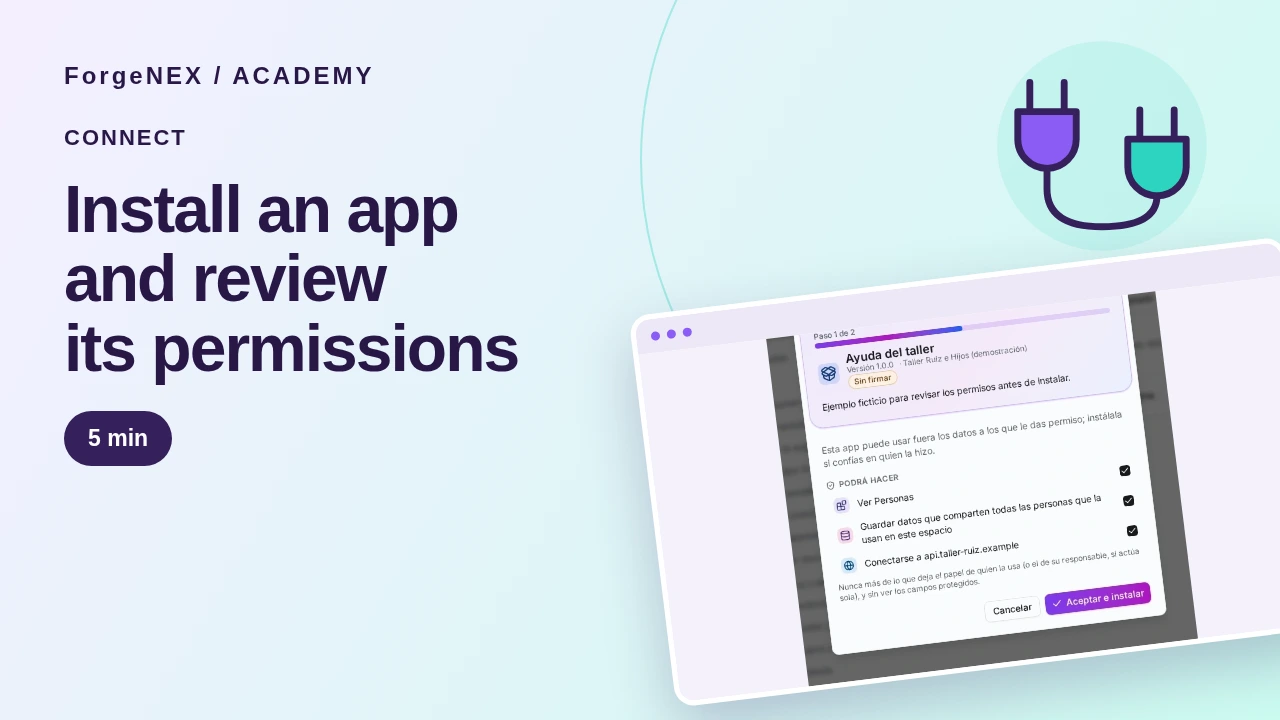
From the reviewed version, continue to permissions and check the modules and actions it requests. The example only needs read access to the orders module. If the proposal asks to create or update records but the screen only needs to look them up, go back to the draft, clarify the expected behaviour and review a new version before accepting. Once installed, the app works within the approved permissions and the scope the person using it has in the CRM.
After approving installation, open the app from Apps. Compare its output with the original module table using the same filter. Ask a colleague to repeat the check using their normal role. If they see fewer rows, compare what they can read in the CRM before changing the app. A different count may be the expected result of that person's permissions. Check the list as well as its total so that you can tell the difference between a visibility rule and a mistake in the filter.
Make one change and compare the result
Use the change action to revise the app. You could ask it to include the delivery date or sort the oldest orders first. The request creates another version. Check what it retains, try the change in preview and review whether it asks for additional permissions. Give the team a check they can repeat, such as finding a known order and comparing its delivery date with the original record.
The Pix builder is designed for small apps inside the CRM. If you need several custom screens, scheduled functions or an external integration, ForgeNEX also has a developer toolkit with packages and declared permissions. A well-defined first screen gives you a measurable starting point even if the project grows later. ForgeNEX Apps technical documentation in Spanish