

Sports
Manage sports school with ForgeNEX
Try ForgeNEX with this solution for 14 daysChoose this solution when you set up your CRM.
What you can manage
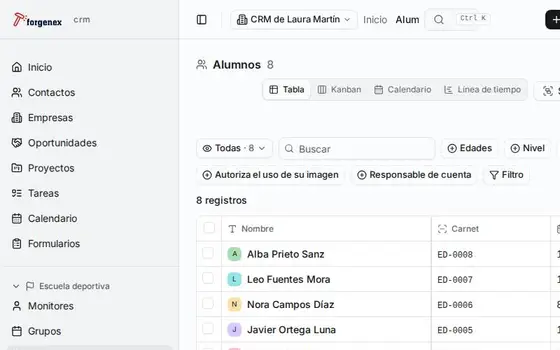
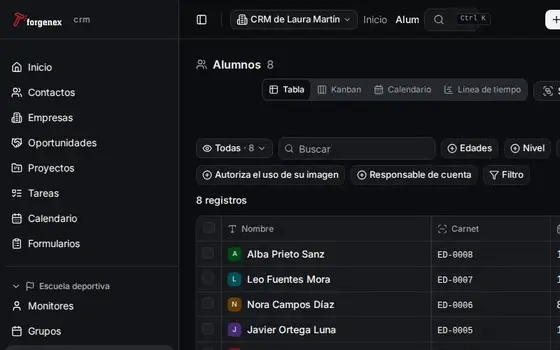
Use «Instructors» as the starting point for Sports school. The same workspace also has tables for «Groups», «Students», and «Enrollments», so your team can keep each type of record in its own place.
What’s included
Instructors
Name · Specialties (Beginner, Advanced, Competition, and Adapted) · Phone · Email · Groups.
Groups
Name · Instructor · Day (including Monday, Tuesday, Wednesday, Thursday, Friday, and Saturday) · From · To · Ages (Children (4–11), Youth (12–17), and Adults) · Level (Beginner, Advanced, Competition, and Adapted) · Installation · Capacity · Monthly fee · Enrollments · From (season) · Until (season).
Views · daily schedule, booking board, and Kanban board
Record PDF.
Students
Name · Licence · Date of birth · Ages (Children (4–11), Youth (12–17), and Adults) · Level (Beginner, Advanced, Competition, and Adapted) · Available days (including Monday, Tuesday, Wednesday, Thursday, Friday, and Saturday) · Preferred time · Siblings · Status (On the waiting list, Active, and Inactive) · Sort order (highest first) · Minor · Legal guardian · Phone · Email · Monthly fee · Quarterly fee · Authorizes use of their image · Notes (health, allergies…).
Views · Kanban board
Record PDF.
Enrollments
Student · Group · From · To.
Automation rules supplied · 2
A day with ForgeNEX
- When you add instructors, you start with name, specialties, and phone so the team has the details to hand.
- As the day goes on, you use the daily schedule to keep track of groups.
- If you need to keep or share the details from groups, you download the PDF.
Working with Pix
- Catch me up on students (sports school) marked as active.
- What’s the total for students (sports school), adding up monthly fee?
Pix can access only the records your account can see.
Frequently asked questions
- Where do I start with «Instructors»?
- Choose «Sports school» when setting up ForgeNEX CRM. Open «Instructors» to create and review records with the included fields.
- Can I adapt the solution to the way my team works?
- Yes. After installing «Sports school», use the CRM designer to adjust fields and views such as those in «Instructors».
- What can Pix help me review in «Instructors»?
- Ask Pix to summarise the records you can access in «Instructors». Pix uses your account permissions.
Let us or a partner set it up for you
Tell us how your team works so we can discuss the setup.
Talk about setup