

Meet the Pix AI team: Nora, Darío, Marina, Leo and Irene
Find the right ForgeNEX agent for overdue payments, quote follow-ups, admin email, publication planning or CRM design.
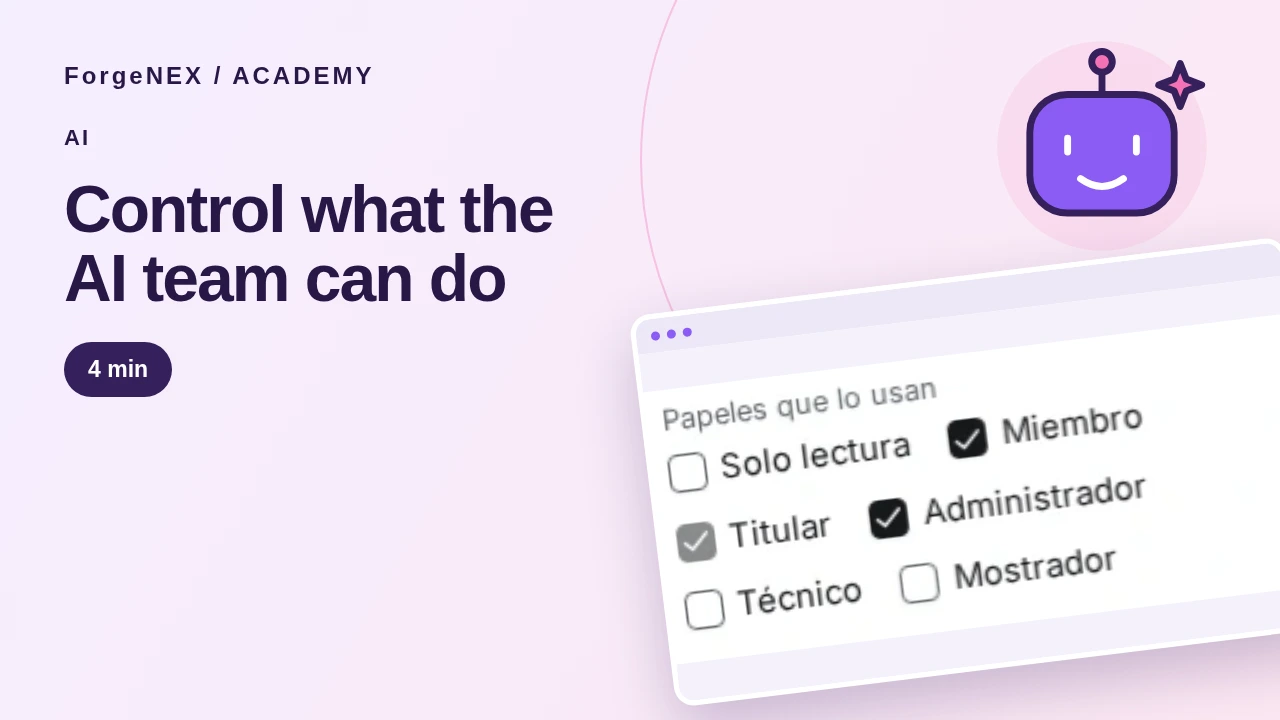
Choose a Pix agent based on the decision you need to prepare. If you are chasing a payment, you want to start with invoices that still have a balance. If you are reviewing sales, you want to know which quotes are waiting for a reply. The ForgeNEX AI Team gives you specialists for different jobs. Start in Settings > AI Team, check who may use each agent, and choose a task whose result you can verify against your own records.
Nora reviews invoices and payments
Use Nora to start a review of overdue invoices. In her chat, give a time frame or say how far overdue an invoice should be to make the list. When Invoicing is available in your workspace and your role grants access, Nora can review due dates and return a summary. Open the relevant invoice before chasing payment and check its balance and recent transactions. A transfer received this morning can change which customers you need to contact first.
If you plan to call a customer, ask Nora to prepare a follow-up task and review the reference she uses. If you want to write, ask for a draft to review. Nora reads Invoicing with the permissions of the person asking and works in CRM with that person's access. You issue invoices and record payments through the normal Invoicing process. If Nora reports missing access, check your role with the administrator or ask the colleague responsible for the invoices to lead the review.
Darío follows up on quotes and sales stages
Use Darío to find offers that have been waiting for a reply. Set up the stages in his profile. They can be stages in a custom sales module or sent quotes from Invoicing when you have access. Choose stages that describe a specific situation, such as “Quote sent” on your work orders. Then the results can help you decide what to do next. Check the setup with a record you know before relying on the entire list.
Ask Darío to review your quotes now. Open the records he returns and read the most recent conversation about each one. An older quote may still be on schedule if the customer asked you to wait until a certain date. Separate those cases from offers that need a reminder. For follow-up, verify who owns the deal, who should receive the message and what you can reasonably say before creating a task or approving an email.
Marina helps you find the administrative email you want to review
Marina can help locate messages, such as email that might contain supplier invoices. When the connector is available for your account, connect Gmail or Outlook and open her personal settings. Review the examples used during setup. The preview uses metadata such as the sender, subject and whether there is an attachment. Use these clues to choose the domains or senders to include and decide when a match should require an attachment. Save the filter to her profile when the examples reflect the work you want to review.
Then ask Marina to review your email and check a few results in your inbox. An order confirmation can resemble an invoice, and a familiar supplier can write about a separate matter. Adjust the filter if you find a pattern that produces too many matches. Before processing a document from the results, open the original message and verify the attachment under your usual accounts procedure.
Leo helps prepare a publication calendar
Leo uses information about your business, your tone and the topics you want to cover. During setup, you can review a proposed summary based on your website. Correct inaccurate statements, outdated services and information about a different business activity before saving the profile. Based on the approved details, Leo can propose a publication plan. Check the entries, dates and selected networks before saving it.
Start with a specific goal, such as explaining what a maintenance visit includes or how to prepare for an initial appointment. Read each suggestion to make sure the wording stays within the scope of the service and describes claims you can substantiate. Saving an idea in the calendar, reviewing its content and authorising it to go out are separate steps. If you plan to publish using an available connector, verify the destination and inspect the send proposal before confirming.
Irene examines the way your CRM is structured
Irene can help you review the design of your workspace. She can look at module and field names, relationships, automations and counts within your permissions. The structure review works without the values inside individual records. Ask her to identify a specific source of friction, such as two fields being used to describe one stage. Discuss the proposal with the person who maintains the module, especially when the fields appear in views, formulas or automations your team relies on each day.
When your role permits configuration, review any proposed design, module change or automation before applying it. If an administrator needs to approve the work, Irene can help you prepare a request. Include the reason, who will be affected and how you will check that the change made the work easier. Start with an adjustment small enough to evaluate on a single sample record.
Agree how the team will review actions
In Settings > AI Team, check the on switch, allowed roles and autonomy for each agent. Proposal-only mode is useful when people are learning the workflow. The mode that permits action gives agents room to carry out small changes under the product's rules. External sends wait for confirmation. The AI team activity screen shows changes made directly. During the first week, try one well-defined case per agent with someone who knows the source. Have them explain which facts they checked, what the agent did, and which action still needed a person to approve it.