

How to manage hotel bookings, housekeeping and TTLock access
Follow a guest stay in ForgeNEX CRM from room booking and guest registration to access codes and checkout cleaning.
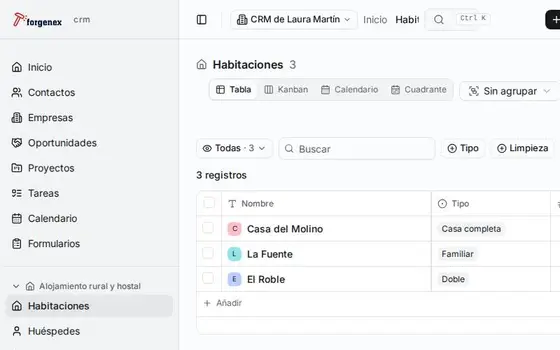
A room booking starts several jobs. Reception needs to know who is coming and when, housekeeping needs to know which room to prepare, and the guest needs a way in that works throughout the stay. Hotel with TTLock combines the accommodation workflow with access codes for each booking. Use one test room to try the complete process before extending it to the rest of your property.
1. Set up the room and its lock
Installing Hotel with TTLock requires an active TTLock connection. Start with a lock you can test in person. In the rooms module, give the room the name reception will recognise and select the device in the TTLock lock field. Check that the device in the room record matches the physical door. If you select the wrong device, you could produce a valid code for a different door even if the room name on the booking looks right.
Review the configured check-in and checkout times in the lock settings. They determine the hours at either end of the code's validity. Use the actual times at which the team expects to hand over rooms. If you agree an exception with a guest, check the validity window on their booking before confirming when they can use the code. Use an inbox you control for the pilot and inspect the message your guest would receive.
2. Create a booking and check what happens when it changes
In the bookings module, choose the guest and room and set the arrival and departure dates. The solution checks for overlapping bookings for the same room. Review the sales channel, season and rate if you use them to organise bookings. Check the nights, extras and payments on the record before relying on totals in a message to the guest. A channel identifies the source of the booking. For the pilot, create a direct booking and document how the team will enter bookings from its other channels.
The solution generates a code when you create a booking that is not cancelled. It displays the code on the booking table and in the guest portal, and the automation sends it by email. Check both the access code and its validity on the record. If you change the dates or room on an active booking, the workflow regenerates the code and sends the new one. A cancellation revokes access. Connection failures and rooms without a linked lock produce an inbox alert. Check that inbox as part of the arrival review so a guest does not discover a missing code at the door.
Try changing rooms using two devices that you can identify reliably. Note the code shown on the test booking, change the room and check the booking record and the test inbox. Then cancel the booking and verify the final state, including revocation, under test conditions before relying on the setup with guests.
3. Track guest registration as its own job
The guest portal brings together bookings and check-in. The check-in and guest registration module stores each traveller's details and signed form against the booking. Reception can check the document and the registration status in the CRM. Use demo data to test the portal and check what the guest account can see before inviting anyone.
The solution includes automation that creates a task to review a new check-in and a task to submit a guest registration after signature. Use the second task if your property needs to submit guest registration details and adapt it to the reporting channel you use. Agree who submits the form, who checks completion and where to record the outcome. For a booking with two guests, check that you can follow the two forms separately and detect the one still pending. That will help reception avoid asking a guest to supply information they already provided.
4. Use housekeeping for the room turnover
When a booking reaches checkout, the supplied workflow marks its room for cleaning and creates a pending checkout clean. In the housekeeping module, staff can review the board and schedule, and assign the clean to the person responsible. When a clean is marked done, the workflow sets the room to clean. Test this with a checkout and arrival close together. Agree who decides when a room is ready if housekeeping has finished but a maintenance problem still needs attention.
For the morning review, compare departures with pending cleans. For the arrivals review, check clean rooms, active reservations and access alerts. Keeping the two checks distinct makes it less likely that somebody will mistake a generated code for a room ready to occupy. Set up the information reception and housekeeping each need. The solution supplies a housekeeping role with restricted access to payments, sales channels and check-in records.
Complete a one-night trial
Create a booking with your test inbox, complete a demo guest form and check the access window. Move the room on a second booking and cancel a third to verify those changes independently. Check out the first booking and complete the clean from its record. Ask a colleague to follow the same screens under their own working permissions.
By the end of the trial, somebody on the next shift should be able to tell who deals with an access failure, where to check if a guest form still needs attention, and how reception finds out a room is ready again. Check those answers before adding another floor or property. A pilot that includes a failed device connection is particularly useful because it lets the team practise handling the alert while nobody is waiting outside.
If you run holiday apartments
ForgeNEX has a separate Holiday Apartments with Locks and Lights solution. Its main record is the stay, linked to the apartment and booking holder. It can associate an additional TTLock device for the building entrance and includes TTLock and Shelly connections. For that setup, test access at the building entrance and the apartment door. The housekeeping workflow described above belongs to the hotel solution.