

How to run an auto repair shop in ForgeNEX CRM
Set up vehicle intake, work orders, repair estimates, labour entries and customer handovers in one workshop workflow.
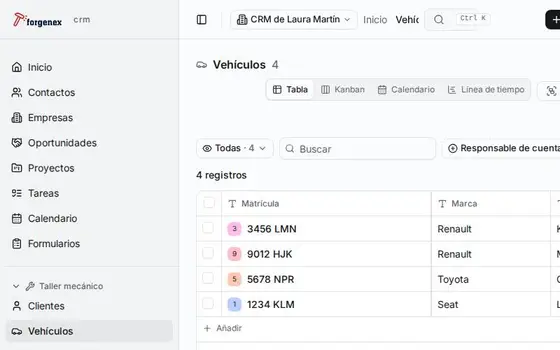
When a repair moves from the front desk to the mechanic and back again, everyone needs quick answers to three questions. What did the customer leave with us? What work did they approve? What needs to happen before we return the vehicle? The Auto Repair Shop solution in ForgeNEX CRM puts those answers in linked records. Install it in a test workspace and use a demo vehicle to follow one job from booking to collection.
1. Confirm the appointment
Open the appointments module and create an entry with the customer, date and time, and reason for the visit. Link the vehicle if it already has a record. The registration number comes from that record. Leave the appointment at the requested stage until you agree a time. Then move it to confirmed. The workshop calendar places appointments in time order and the appointments board groups them by status, giving the front desk a way to find requests that still need a response.
Record the symptom the way the customer describes it. For example, they might say they hear a noise when braking after a long drive. That gives the mechanic a starting point without committing to a diagnosis. If the customer calls to reschedule, change the existing appointment so the person working the next shift retains the context and contact details already recorded.
2. Take in the vehicle and document the agreement
Follow the intake action from the appointment. It carries the customer, vehicle and reason for the visit into the intake form. For a walk-in, create an intake record and link both the customer and the vehicle. Look up the registration number first and check that the matching record describes the vehicle in front of you.
Record the odometer reading, fuel level, visible damage and belongings left inside. Attach intake photos where they help document the condition of the vehicle. Note the spending limit the customer authorised, whether they asked for an estimate in advance, and whether they want the replaced parts. These details describe the condition in which you received the vehicle and the work that can begin. Confirm any unclear authorisation with the customer before relying on it in the workshop.
The intake record has a printable repair order and a signature form. Review the document with the customer and check that the signed copy is attached to the intake. The board groups the records by draft, sent for signature and signed. When several vehicles arrive together, reception can use those states to see which handover still needs paperwork.
3. Open a work order and build an estimate
Use the action to open the work order from the intake. The new order links to the intake and brings in the customer, vehicle, reported problem and arrival date. Use the work order to keep a clear account of the work and a realistic expected finish. If the date depends on a part arriving, record that dependency before promising a collection slot.
In the repair estimates module, link your estimate to that order. Review the customer, issue date and validity date. Enter parts and labour as separate lines and check quantity and price on each. The line total multiplies those two figures. The supplied template shows a subtotal and a separate total including tax. Review the configured calculation and the figures shown on the document before using it with customers.
The printable estimate shows its number, vehicle registration, expiry, line items and total. Use the estimate acceptance flow and check the resulting status on the record. If the diagnosis changes, describe the extra work and obtain approval for the updated scope before carrying it out. Write down what the customer asked for separately from what the mechanic found, so another person can check the estimate without reconstructing the conversation.
4. Log time and parts while work is in progress
The labour hours module stores entries linked to an order and a mechanic. Enter the date, hours and a short description of the work. The solution calculates the amount for that entry using the mechanic's hourly rate. Set up mechanic records and rates before your trial and check that a simple test entry gives the result you expect for the time unit your team uses.
Look up parts in the parts module. The solution also includes warehouses, suppliers and parts purchases. Receiving a purchase is the point at which its stock comes in. Check which warehouse has received the material and what each job still needs before promising a finish date. At the end of a shift, review active orders and their related labour entries so you can spot a job with unrecorded time or missing parts information.
5. Prepare collection and close the job
Open the work order before handing over the vehicle. Review the approved work, the actual work, the mileage and the points the customer needs to know. The solution includes a vehicle-ready email template. Check the registration and recipient before sending it. A vehicle can be ready to collect while it is still in your care. Mark the order as delivered once the vehicle changes hands and agree that meaning with both the front desk and the workshop.
You can enter the money received in the payments module, linked to the order. The solution also has a warranty module for completed repairs. Decide who records each item, so the amount paid does not get entered twice. If the customer calls later, search by registration and open the relevant order before deciding how to handle the new request.
Try the workflow across a full shift
Test an appointment that goes ahead, an intake awaiting a signature and an estimate the customer declines. On the completed appointment, follow the links all the way through to a work order with a labour entry and a completed collection. Ask someone at reception to find the accepted document and a mechanic to find the approved work. Check that payments and warranties lead back to the correct order. If a crucial fact can only be found in a chat, record it where the next shift will look for it.