

Rentals
Manage equipment rental with ForgeNEX
Try ForgeNEX with this solution for 14 daysChoose this solution when you set up your CRM.
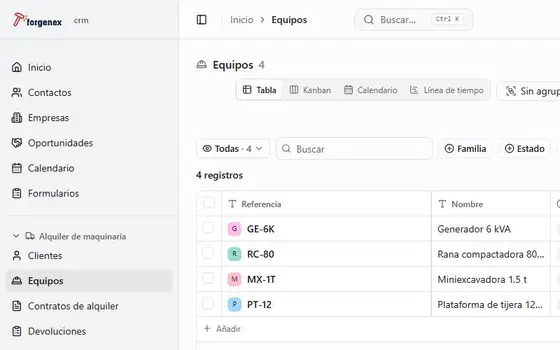
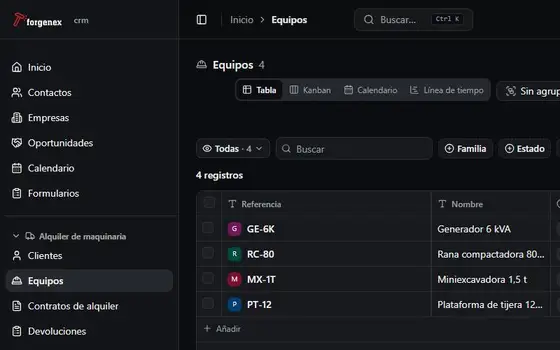
What you can manage
Use «Customers» as the starting point for Equipment rental. The same workspace also has tables for «Equipment», «Rental agreements», and «Returns», so your team can keep each type of record in its own place.
What’s included
Customers
Name · Phone · Email · Tax ID · Type (Private and Company) · Contracts.
Record PDF.
Equipment
Reference · Equipment · Category (Elevation, Earthworks, Compaction, Generators, and Scaffolding) · Barcode · Daily rate · Standard deposit · Status (Available, Rented, and At the workshop) · Next service.
Views · Kanban board and calendar
Record PDF.
Rental agreements
Number · Customer · Customer phone · From · To · Site address · Status (Reserved, In progress, Returned, Completed, and Cancelled) · Equipment rented (days) (Description, Quantity, Price, and Total) · Total · Deposit · Deposit refunded · Special terms.
Views · Kanban board, timeline, and map
Record PDF.
Returns
Contract · Contract end date · Equipment · Date · Result (Correct, Damaged, and Out of order) · Issues · Damage charge · Reviewed by.
Views · calendar and Kanban board
Automation rules supplied · 3
A day with ForgeNEX
- When you add customers, you start with name, phone, and email so the team has the details to hand.
- As the day goes on, you use the Kanban board to keep track of equipment.
- With ForgeNEX Billing connected, you draft the quote from the details in rental agreements and check it before sending.
Working with Pix
- Which equipment (elevation) are marked as rented?
- What’s the total for equipment (elevation), adding up daily rate?
Pix can access only the records your account can see.
Frequently asked questions
- Where do I start with «Customers»?
- Choose «Equipment rental» when setting up ForgeNEX CRM. Open «Customers» to create and review records with the included fields.
- Can I adapt the solution to the way my team works?
- Yes. After installing «Equipment rental», use the CRM designer to adjust fields and views such as those in «Customers».
- What can Pix help me review in «Customers»?
- Ask Pix to summarise the records you can access in «Customers». Pix uses your account permissions.
Let us or a partner set it up for you
Tell us how your team works so we can discuss the setup.
Talk about setup