

Education
Manage academy with ForgeNEX
Try ForgeNEX with this solution for 14 daysChoose this solution when you set up your CRM.
What you can manage
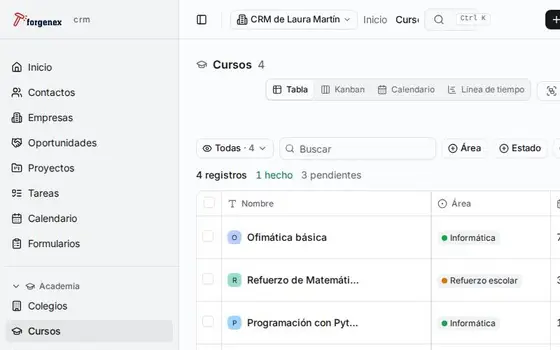
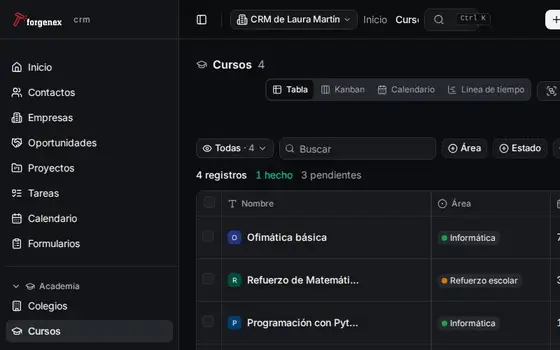
Use «Schools» as the starting point for Academy. The same workspace also has tables for «Courses», «Students», and «Enrollments», so your team can keep each type of record in its own place.
What’s included
Schools
Name · Type (Public, Contracted, and Private) · City · Phone · Email · Students.
Courses
Name · Area (Languages, IT, Tutoring, and Civil service exams) · Start date · End · Schedule · Teacher · Hours · Places · Monthly price · Status (Scheduled, Enrollment open, In progress, and Completed) · Enrolled students · Teacher · Regular classroom · Active students · Available places · Teaching hours · Progress (%).
Views · Kanban board, timeline, and calendar
Record PDF.
Students
Name · Email · Phone · School · School city · Main course · Minor · Legal guardian · Guardian phone · Authorizes use of their image · Guardian email · Active enrollments.
Enrollments
Number · Student · Course · Date · Status (Pending payment, Up to date, Overdue payments, Withdrawn, and To be signed) · Payment method (Direct debit, Bank transfer, Card, and Cash) · Fees (Description, Quantity, Price, Due, Paid, and Total) · Total amount · Notes · Request · Student · Legal guardian · Course · Schedule · Fee · Payment terms (Every month and Every quarter) · Next instalment · Withdrawal date · Paid · Returned receipts · Classes attended · Absences · Attendance (%) · Total grades · Notes · Average grade · Signed enrollment agreement.
Views · Kanban board
Record PDF.
Certificates
Code · Student · Course · Issue date · Accredited hours · Note · Result (Passed and Failed) · Student · Course.
Record PDF.
Teachers
Name · Email · Phone · Specialty · Hourly rate · Teaching hours · Next in rotation.
Classrooms
Name · Capacity · Equipment.
Views · schedule
Sessions (classes)
Course · Course · Classroom · Teacher · Starts · Ends · Hours · Topic · Status (Scheduled, Delivered, and Cancelled) · Absences.
Views · Kanban board
Attendance
Session · License plate · Student · Status (Present, Absence, and Excused absence) · Justification.
Views · Kanban board
Assessments
License plate · Student · Test type · Date · Note · Comment.
Receipts
License plate · Student · Period · Amount · Date · Status (Pending, Collected, and Returned).
Views · Kanban board
Information requests
Name · Email · Phone · Course of interest · How they found us (Website, Social media, Referral, and School) · Status (New, Trial class, Enrolled on, and Discarded).
Views · Kanban board
Automation rules supplied · 12
Message templates · 2
A day with ForgeNEX
- When you add schools, you start with name, type, and city so the team has the details to hand.
- As the day goes on, you use the Kanban board to keep track of courses.
- If you need to keep or share the details from courses, you download the PDF.
Working with Pix
- Catch me up on schools (public).
- Can you break down schools (public) by name?
Pix can access only the records your account can see.
Frequently asked questions
- Where do I start with «Schools»?
- Choose «Academy» when setting up ForgeNEX CRM. Open «Schools» to create and review records with the included fields.
- Can I adapt the solution to the way my team works?
- Yes. After installing «Academy», use the CRM designer to adjust fields and views such as those in «Schools».
- What can Pix help me review in «Schools»?
- Ask Pix to summarise the records you can access in «Schools». Pix uses your account permissions.
Let us or a partner set it up for you
Tell us how your team works so we can discuss the setup.
Talk about setup