
Office Address
Seville, Spain
Seville, Spain
Phone Number
+(34) 624 816 969
Email Address
info@forgenex.com
Available on Google Play

Seville, Spain
Seville, Spain
+(34) 624 816 969
info@forgenex.com





 by ForgeNEX
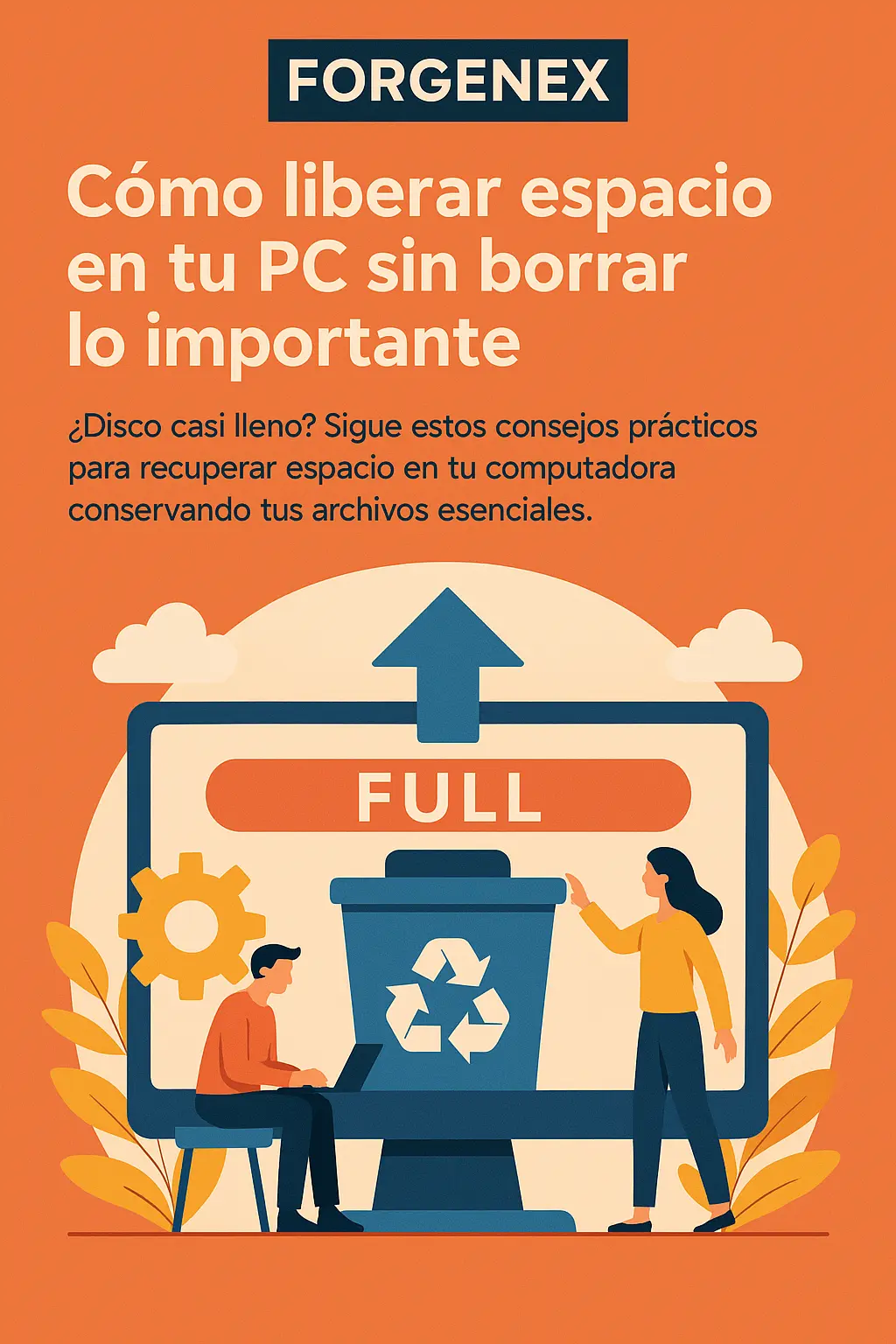
 Few things are more frustrating than the “insufficient disk space” warning. Your computer starts to slow down, won't let you install updates, and even opening a large file becomes a chore.
The good news is that freeing up space doesn't have to mean blindly deleting files or losing valuable memories. With a bit of organization and the right tools, you can reclaim entire gigabytes without risking your data.
In this article, we'll go step-by-step on how to do it, from the very basics to some more advanced tricks.
Table of contents [Show]
Before diving into complicated tools, there are a couple of simple actions that usually free up a lot of space:
Empty the Recycle Bin: It seems silly, but gigabytes you thought were deleted often accumulate there.
Delete old downloads: Go into your Downloads folder and delete installers, PDFs, or photos you no longer use.
Uninstall programs you don't use: In Control Panel (Windows) or Applications (macOS), review the list and remove anything you haven't opened in months.
Both Windows and macOS include wizards that make life easier:
Windows → Storage Sense
It allows you to automatically delete temporary files, caches, update leftovers, and even content from the Downloads folder.
How to enable it: Settings → System → Storage → “Storage Sense”.
macOS → Storage Management
From the Apple menu → About This Mac → Storage → Manage, you can optimize iCloud, automatically empty the trash, and review large files.
Sometimes it's not that you have too many files, but a few very large ones taking up half your disk.
Tools like WinDirStat (Windows), DaisyDisk (Mac), or du (Linux) show a visual map of what's taking up the most space. This helps you decide what to delete or move intelligently.
Typical examples:
Forgotten videos in project folders.
.ISO files from old installations.
Duplicate backups.
Programs and the operating system itself generate tons of temporary files that are rarely useful.
On Windows: type cleanmgr in the Start menu to run the Disk Cleanup tool.
On macOS: applications like CleanMyMac (paid) or free scripts can delete caches and app leftovers.
On Linux: a simple sudo apt autoremove && sudo apt clean (on Debian/Ubuntu) frees up space from unused packages and dependencies.
Your most important photos and documents don't have to live on your hard drive forever. Options like:
Google Drive (15 GB free)
OneDrive (5 GB free, integrated with Windows)
iCloud (5 GB free for Apple users)
Allow you to move content to the cloud and keep it accessible without taking up local space.
If you work with videos, heavy projects, or games, the best solution is to use an external hard drive or SSD.
They are cheap, fast, and easy to use nowadays. This way, you keep your computer light and your information safe.
In Windows, restore points can take up tens of gigabytes. From Settings → System → System Protection, you can adjust how much space to reserve or delete old ones.
In macOS, Time Machine saves local snapshots that can fill up your drive; you can disable them or limit their usage.
It's not just about freeing up space once, but about maintaining it:
Enable automatic cleanups (Storage Sense in Windows).
Delete installers right after using them.
Do a monthly cleanup of your downloads folder.
Consider upgrading your storage to a larger SSD if you're always working at the limit.
Keeping free space isn't about randomly deleting photos, but about being organized and using the right tools. With these steps, you can reclaim tens of gigabytes without compromising your important files.
In the end, freeing up space isn't just about performance: it also extends your computer's lifespan and reduces errors. And if you still run short, there's always the option to step up and upgrade to a higher-capacity SSD.
