
Office Address
Seville, Spain
Seville, Spain
Phone Number
+(34) 624 816 969
Email Address
Available on Google Play

Seville, Spain
Seville, Spain
+(34) 624 816 969





 by ForgeNEX
 In the world of software development, Git has become the de facto standard for version control. From individual projects to teams distributed worldwide, Git allows managing code changes, collaborating in an orderly manner, and maintaining a reliable work history.
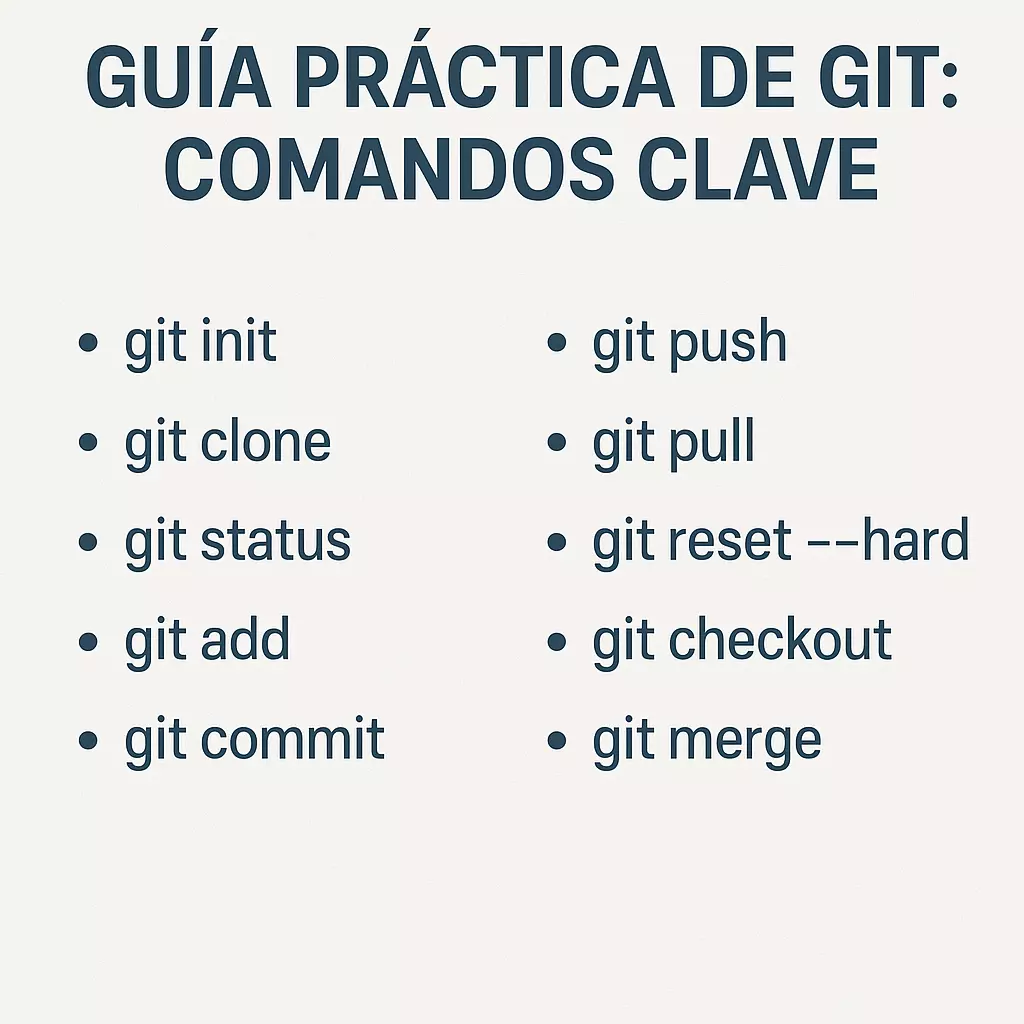
However, for those starting out—and even for those who use it daily—some commands can be confusing or even “dangerous” if not understood well. In this article, we review several key commands, with clear examples and explanations.
Table of contents [Show]
The starting point.
git init: converts a folder into an empty Git repository.
git clone: downloads an existing repository from a remote server (GitHub, GitLab, Bitbucket, etc.)
Probably the most used command day-to-day. It shows which files have changed, which are ready to be committed, and which are not.
The basic flow: adding changes and committing them.
git add file.txt → adds a specific file.
git add . → adds all changes in the current directory.
git commit -m "descriptive message" → saves the snapshot in the project history.
Example:
This is where real collaboration begins.
git push: sends local commits to the remote repository.
git pull: downloads the latest changes from the remote and merges them with your current branch.
⚠️ Tip: before doing a push, make sure you have done a pull to avoid conflicts.
This command is powerful, but also risky.
It is used to force your branch back to a previous state, discarding all uncommitted changes and commits after the point you specify.
Example:
⚠️ Caution: you will lose changes that you have not pushed to the remote.
Two ways to switch between specific branches or commits.
With checkout:
With switch (new and more readable):
Both are used to integrate changes, but they work differently:
merge: merges branches, keeping the history of both.
rebase: rewrites the history to make it look linear. Useful for keeping a clean repository, but must be used carefully if working with shared branches.
git log: shows the commit history.
git reflog: allows you to see everything that has happened in the repository, even commits that seem lost after a reset. Very useful for recovering work.
Allows you to temporarily save uncommitted changes so you can switch branches without losing them.
Git is much more than “push and pull”. Knowing commands like reset --hard, reflog, or stash can save you hours of work and prevent catastrophic errors. The key is to understand what each instruction does before executing it.
At ForgeNEX, we help companies and development teams to implement Git workflows, improve collaboration, and ensure that code is managed professionally. Because good version control is not a luxury: it is the foundation of any serious software project.